Statuspage fits
You notify subscribers by email
Statuspage sends incident updates to subscribers by email, Slack and Teams, so customers hear about it without checking the page.
Teams look for a Statuspage alternative when posting updates by hand during an outage is the last thing they have time for. Each row below comes from UptimeClaw's and Atlassian's own published plans.
Last updated November 19, 2026
Atlassian Statuspage is built for communicating incidents: components, subscribers and a team that posts updates. Integrations bring in data from other tools. However, its pricing page lists no built-in uptime checks.
UptimeClaw starts from the other end instead. Your monitors fill the status page, so incidents open and close on their own while you work on the fix.
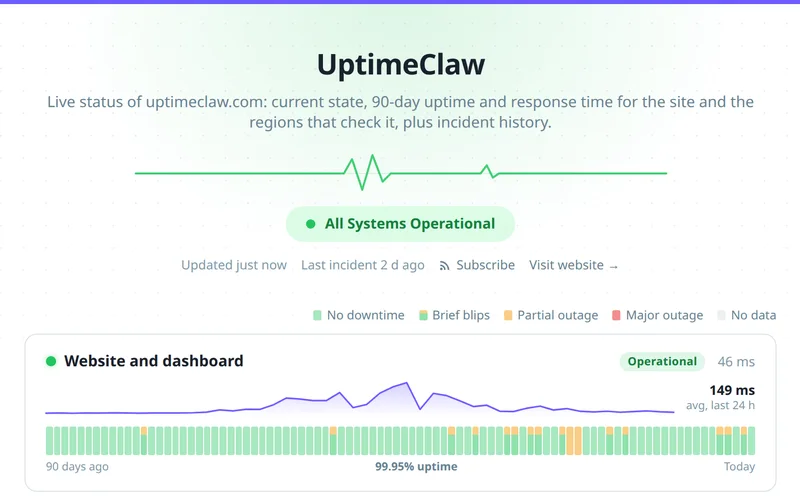
Free plans as published on November 19, 2026. Plans change, so check the source before you decide.
| UptimeClaw | Atlassian Statuspage | |
|---|---|---|
| Uptime checks included | Yes, 5 monitors on the free plan | Not listed; your team or integrations post updates |
| Incidents | Opened and closed by your monitors | Created and updated by your team |
| Subscribers | RSS feed on every public page | 100 subscribers by email, Slack or Teams |
| Components on the free plan | The monitors you tick | 25 components |
| Status page on your own domain | From the Solo plan | From the Hobby plan |
| Password-protected page | From Solo | Private pages from the Starter plan |
Source: Atlassian Statuspage pricing, read November 19, 2026, and UptimeClaw's plans.
An honest split, so you pick the right tool the first time.
Statuspage sends incident updates to subscribers by email, Slack and Teams, so customers hear about it without checking the page.
Custom domains come with Statuspage's paid plans.
Several team members can post and edit incidents.
Because incidents follow your monitors, the page stays right even at 3 a.m.
The checks, the alerts and the status page are one product.
One status page on the free plan. See the free status page.
First run both side by side for a week. Then turn the old checks off once the alerts match.
Yes. Incidents open when a monitor goes down and close when it recovers, with no manual posting.
Yes, through the RSS feed on every public status page. Statuspage, however, also offers email, Slack and Teams subscriptions.
Yes. One public status page and 5 monitors, with no card. Statuspage also has a free plan, but without built-in uptime checks.
Yes, from the Solo plan. Add a subdomain such as status.yourcompany.com in the page editor, add the DNS records it shows, and the certificate is handled for you. Statuspage offers a custom domain from its Hobby plan.
Yes, on Solo and above you can protect a page with a password.
First add a monitor for each component. Then create a status page, tick those monitors and share the new link.
The free plan needs no card. Run both for a week and compare.
Free status page · UptimeRobot alternative · Pingdom alternative · Pricing · All features